Getting Started
Language: English · Українська
This page takes you from the GitHub page to a game open in the editor, with the screens you will see. It was written from tests by people who had never used Picoripi. Every step was run on a clean copy of the program.
flowchart LR
  A[Download from GitHub] --> B[setup.bat]
  B --> C[run.bat]
  C --> D[Choose language and data folder]
  D --> E[Project Manager]
  E --> F[New project: game, files, folder]
  F --> G[Text opens in the editor]
1. Download and install
You need Windows and Python 3.10 or newer (3.14 is the tested one). Windows also needs the Microsoft C++ build tools once, because one package is built on your computer (see the README).
- Download the program:
git clone https://github.com/rashevskyv/Picoripi.git, or press Code → Download ZIP on the GitHub page and unpack it. - Open the program folder and double-click
setup.bat. It makes a.venvfolder and installs the packages. It takes one to three minutes and ends with "Setup completed successfully". - Double-click
run.batto start the program. The first window can take about 15 seconds to appear.
2. First start: language and data folder
The first window asks where Picoripi keeps your data (settings, project list, glossaries). It also asks for the interface language. The language starts as the language of Windows when Picoripi has it, else English. Change it in the list at the top: the window changes at once.
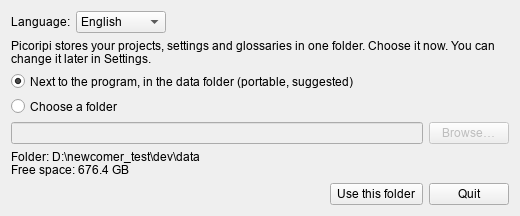
- Next to the program, in the data folder is the default. It is portable: move the program folder and the data moves with it.
- Choose a folder keeps the data wherever you like.
- My user profile uses an older
~/.picoripifolder. Copy existing data is off by default; tick it only to import an older profile.
Press Use this folder. Nothing is deleted. You can change the folder later in Settings → Global → Data folder.
3. The Project Manager
After the data folder, the Project Manager opens. It lists your games. It is empty now.
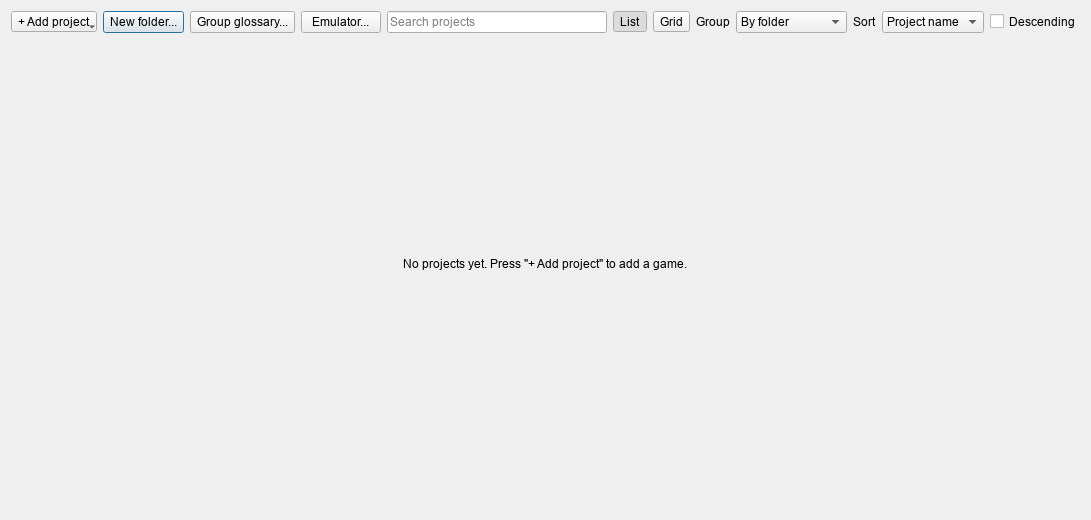
Press + Add project → New project.... File → New Project (Ctrl+N) does the same later.
4. New project: three steps
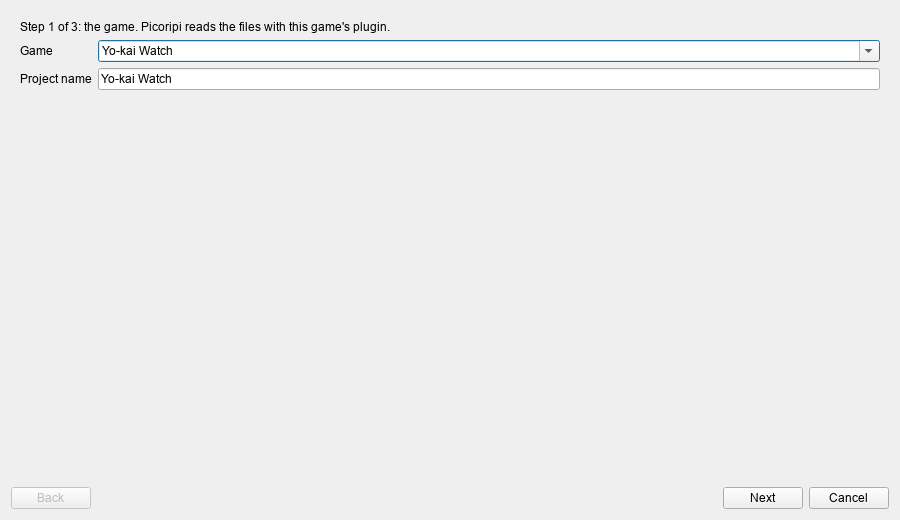
Step 1: the game
Type a part of the game's name in Game and pick it from the list. The Project name fills in by itself; you can add to it.
Step 2: the files
Press Add files... and choose the game files: the game, its update and its DLC, in any order. Or press Add folder... and choose an unpacked game. The file dialog starts in your user folder; type or paste the full path in the File name box.
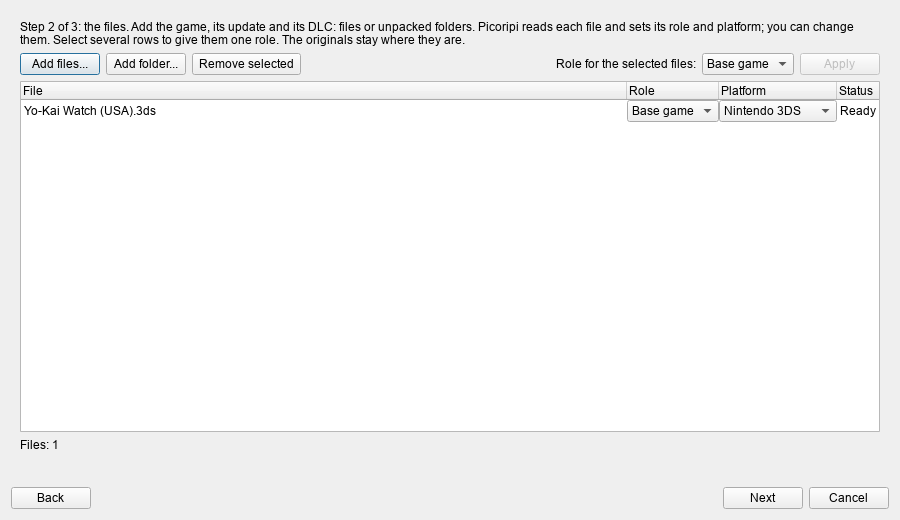
Picoripi reads each file and sets its Role (Base game, Update, DLC) and Platform. A Switch or 3DS title ID tells base game, update and DLC apart. Change them with the lists if the guess is wrong. To give many files one role, select their rows, pick the role beside Apply, and press it. Only DLC can repeat.
The Status column and the red text under the list tell you at once what blocks the project:
| Message | What to do |
|---|---|
| Needs the key file | The file is encrypted. Press Add the key file for ... and choose your console's key file (Switch prod.keys, 3DS aes_keys.txt, Wii keys.bin). Picoripi stores only where the file is. |
| Cannot read: add its folder | This game cannot unpack that kind of file itself. Remove it and add the unpacked game with Add folder.... |
| Two files have the role ... | Give each file its own role. Only DLC can repeat. |
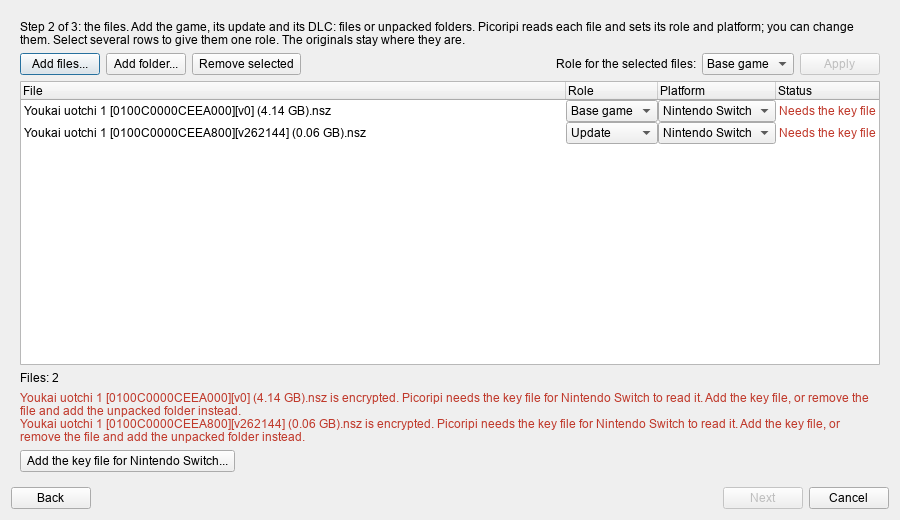
Next stays off until the list is fine.
Step 3: the folder
The project folder holds the project file, the unpacked files and the translation. Picoripi suggests
Documents\Picoripi\<project name>; change it if you like. The window lists exactly where each file goes. The
originals are not copied.
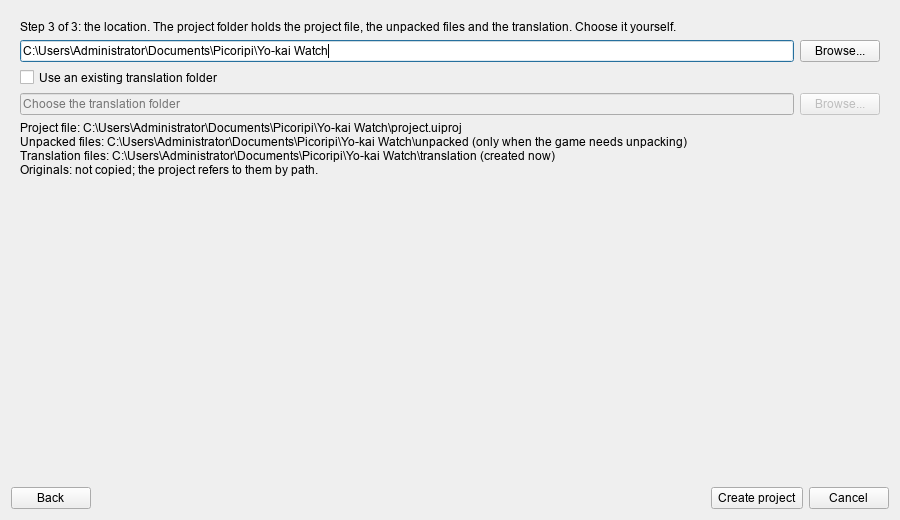
Press Create project. A progress window shows the unpacking, and you can cancel it. Unpacking and loading can take a few minutes for a big game. When it ends, the Project Manager closes and the project opens in the editor.
5. See the text
Pick a block in the tree on the left. The original text shows on the left, your translation on the right. The project icon comes from the game when Picoripi can read it (3DS and GameCube); Change icon... on the project's row in the Project Manager replaces it.
What each game needs
| Game | Files to add | Key file |
|---|---|---|
| Yo-kai Watch, Switch | the game .nsz or .nsp and its update |
Switch prod.keys |
| Yo-kai Watch, 3DS | the .3ds |
3DS keys only when the file is encrypted |
| Twilight Princess, GameCube | the .iso |
none |
| Twilight Princess, Wii | the Wii .iso |
Wii keys.bin |
| Twilight Princess HD, Wii U | the unpacked game folder (Picoripi cannot read .wux yet) |
none |
Every other game is listed in the Game box of step 1. Related pages: interface, AI translation, configuration.